Running an interview
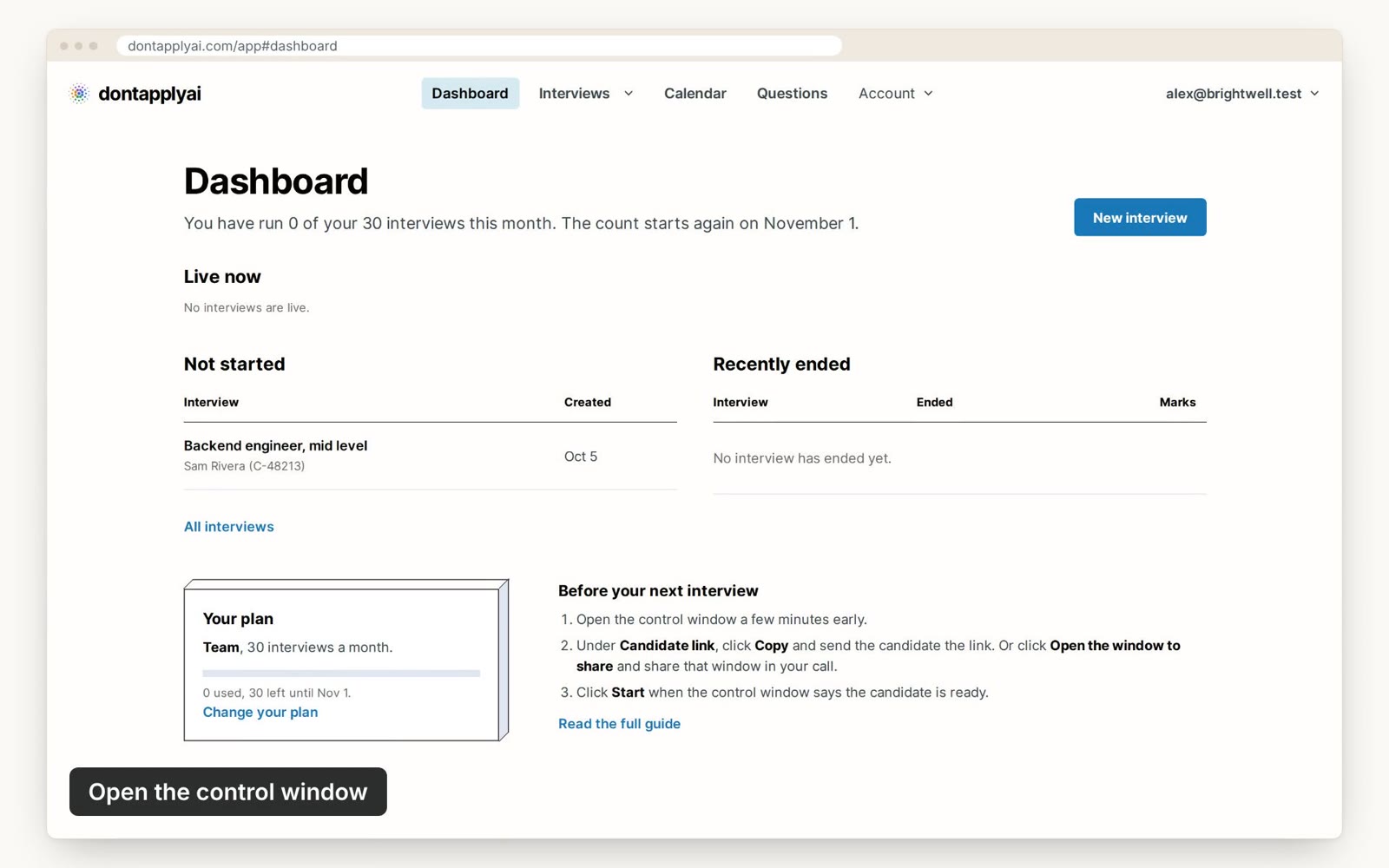
You run each interview from its control window, a page your candidate never sees.
In this video guide
Step by step
To run an interview:
- Step 1
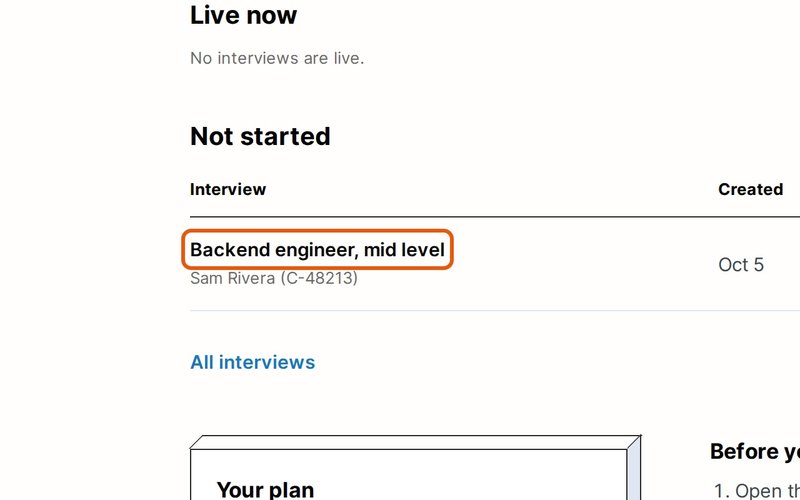
Click the interview's title on the Dashboard. Its control window opens.
- Step 2
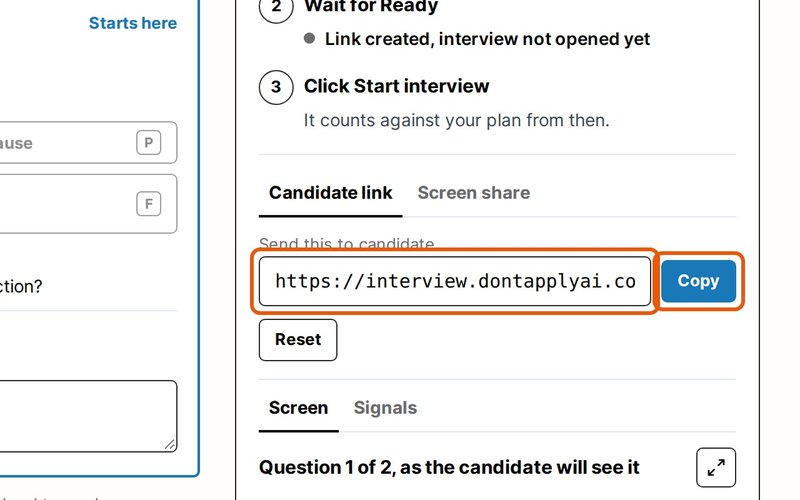
Click Copy under Candidate link, and send the link to your candidate, for example in your call's chat.
- Step 3
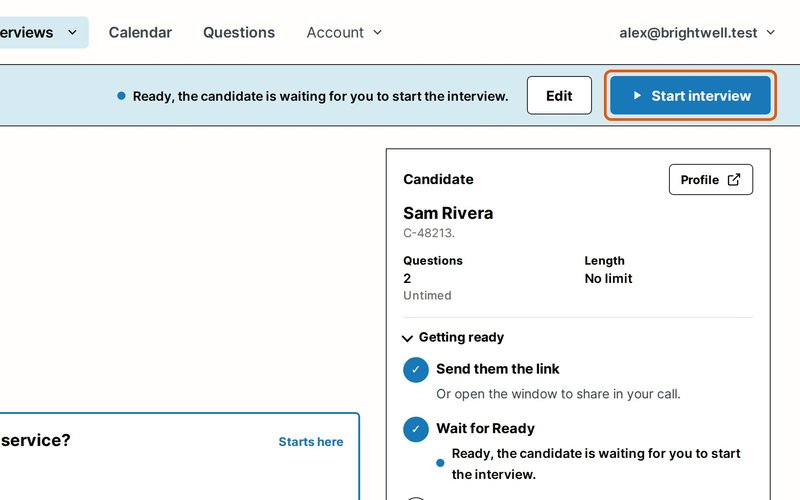
Wait until the line beside Start interview says the candidate is ready, then click it. The first question appears on their screen.
- Step 4
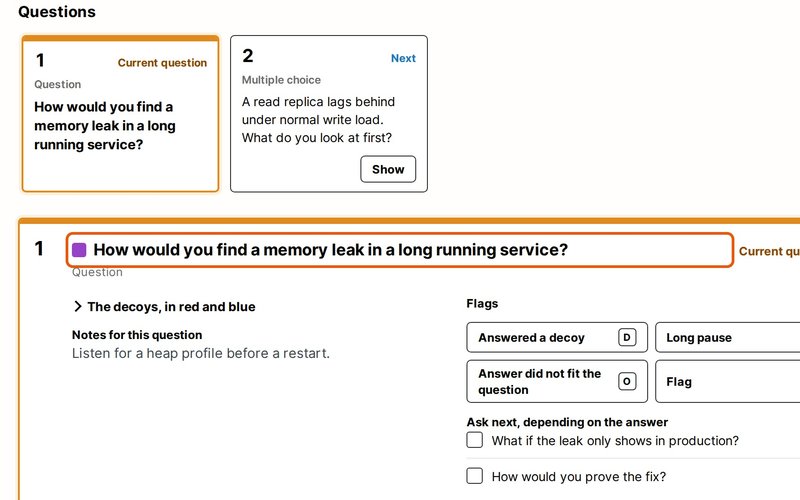
Tell your candidate which color to answer. Their screen shows your question among decoy questions in other colors, and your control window shows that color in a square before the question.
- Step 5
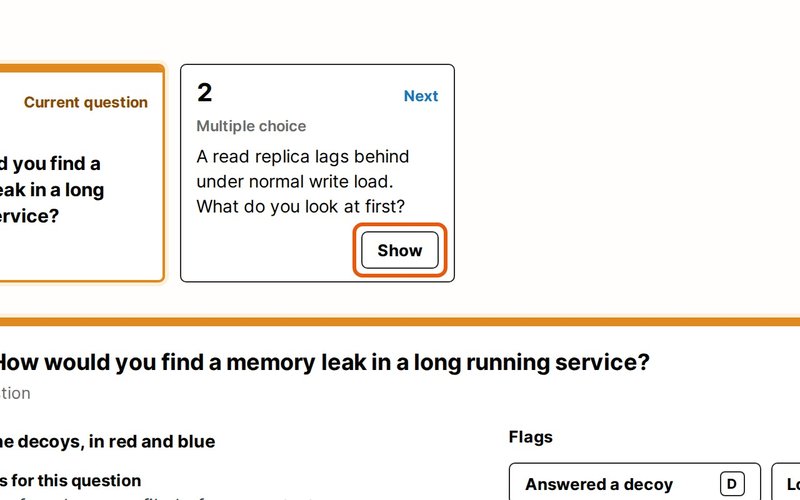
Click Show on the next card under Questions to move on. You can also press Space for the next question, or ← to go back.
- Step 6
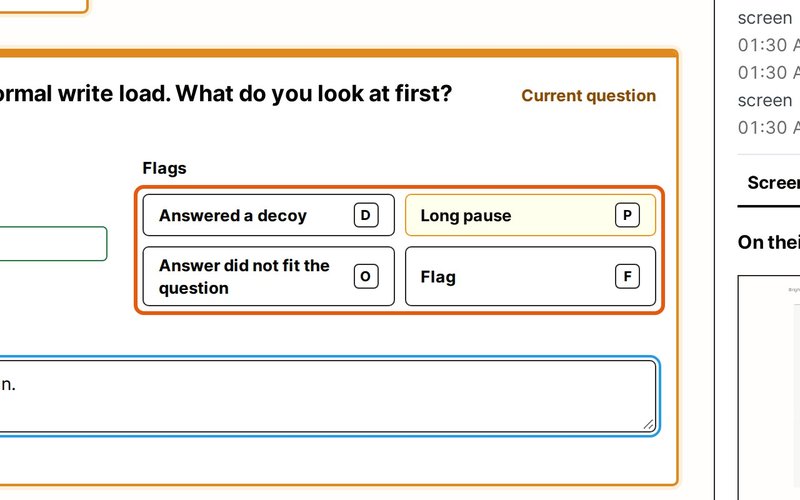
Click a mark such as Long pause or Answered a decoy when you notice it, or press the key shown on it.
- Step 7
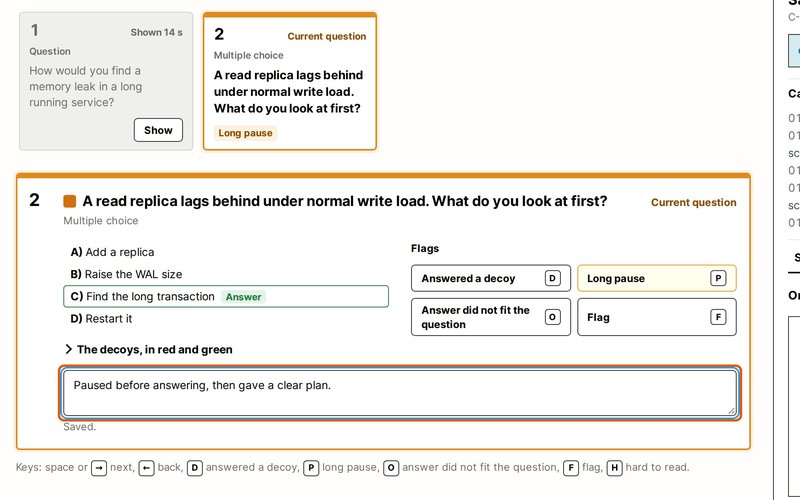
Type anything else you notice in the notes box under the marks. Your candidate never sees your notes.
- Step 8
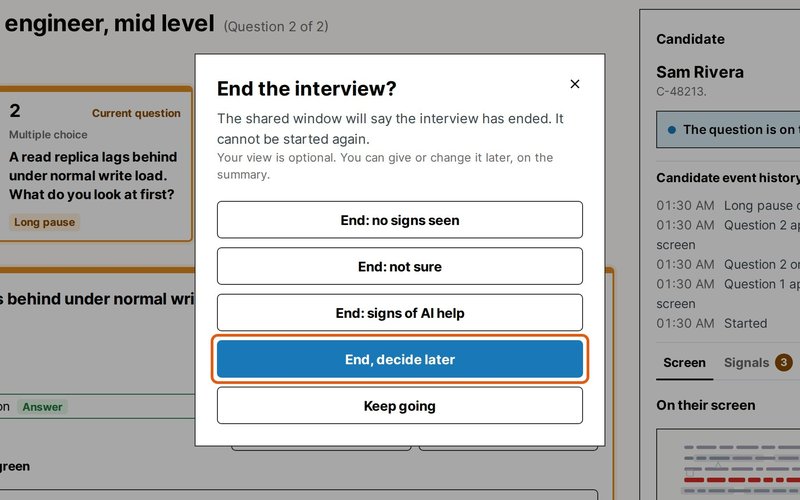
Click End interview when you're done, and choose whether you saw signs of AI help. To decide later, click End, decide later.
To give the real question another color, click the square before it and pick one. The question is drawn again in a new layout, so tell your candidate the new color.
If the link reaches the wrong person, click Reset, then Reset link, and send the new one. The old link stops working at once.
If you timed the questions, the candidate sees a countdown that says "Time is up" when it ends. Nothing moves on by itself, so show the next question when you're ready.
Rather not send a link? Share a window in your call instead.
If you end a live interview within five minutes, while it's still on the first question, it won't count against your plan. This works up to three times a calendar month.
Transcript
0:00 Let's run an interview. Click its title on the Dashboard, and its control window opens. Your candidate never sees it.
0:09 Copy the candidate link and send it to your candidate. When Getting ready says they're ready, click Start interview, and the first question appears on their screen.
0:19 Their screen mixes your question with decoys in other colors, so tell them which color to answer. Your control window shows you the color.
0:27 To move on, click Show on the next card, or press Space.
0:32 When you notice something, like a long pause, click its mark or press the key shown on it. Add any notes you like. Your candidate never sees them.
0:42 When you're done, click End interview and say whether you saw signs of AI help. Or choose End, decide later.
Still need help?
If you can't find the answer you're looking for, send us a message and we'll get back to you, usually within one working day.