Getting started
Set up your first interview, give it a time, and have a practice run before it counts.
In this video guide
Creating an interview
Setting up an interview takes a couple of minutes. Watch the video guide and follow each step.
Scheduling an interview
You can give an interview a time when you create it, or later until it starts. To schedule one:
- Step 1Click New interview. To give a time to an interview you've already created, open it and click Edit.
- Step 2Open Scheduling.
- Step 3Choose the Date, the Start time and the End time. The times are in your own time zone.
- Step 4Choose who will run it under Interviewers. You can select more than one person.
- Step 5Enter the Candidate's email. We send the calendar invitation to this address.
- Step 6Choose your candidate's time zone under Candidate's time zone if it's different from yours. Each place in the list shows what the time will be there.
- Step 7Paste your Zoom, Teams or Meet link under Call link, if you have one.
- Step 8Click Create interview, or Save changes if you're editing.
To move an interview, change its date or time and save it. To take its time away, clear the date and time. A rehearsal can have a time too, and only its interviewers get an invitation.
Calendar invitations
When you schedule an interview with a candidate's email, we email your candidate a calendar invitation. It gives the time in their time zone, the link to the interview, your call link if you added one, and a link to cancel. Gmail, Outlook and Apple Mail show it as an invitation your candidate can add to their calendar. Each person who runs the interview gets an invitation of their own, unless they've connected their calendar, where the interview then appears instead. See Connecting your calendar.
When you move the interview or change its call link, they get an updated invitation, and the event moves in their calendar. When you clear its time, archive it or delete it, they get a cancellation.
Your candidate can cancel from the invitation until the interview starts, and leave you a message. If they do, we email the interviewers, and the console shows a notice with their message. The interview stays on your list with its time crossed out. The notice links to the interview, so you can give it a new time and save it.
If an invitation can't be sent, the interview says Invitation not sent. Click Resend to try again. Invitations go out only while your account has a plan.
The calendar
The calendar shows every interview that has a time. To open it, click Calendar.
- Click Week or Month to change the view, and the arrows to go back or forward. Click Today to come back to this week.
- Click Everyone to choose whose interviews are shown: Me, or any of the people listed under it. You can select more than one.
- Click an interview to open it.
- To schedule an interview, drag down a day in the week from its start to its end. New interview opens with that date and those times. A single click picks an hour.
Times are in your own time zone, which the week shows in its top left corner. Booked interviews are blue, rehearsals yellow, an interview running now orange and ended ones gray. An interview your candidate cancelled is crossed out, with their message. On a phone, the calendar lists the week's interviews by day.
Practicing with rehearsal mode
We recommend a practice run before your first real interview. A rehearsal works like a live interview, but it ends after 15 minutes, and its watermarked slides show the same test question in place of every question. Your control window still shows your own.
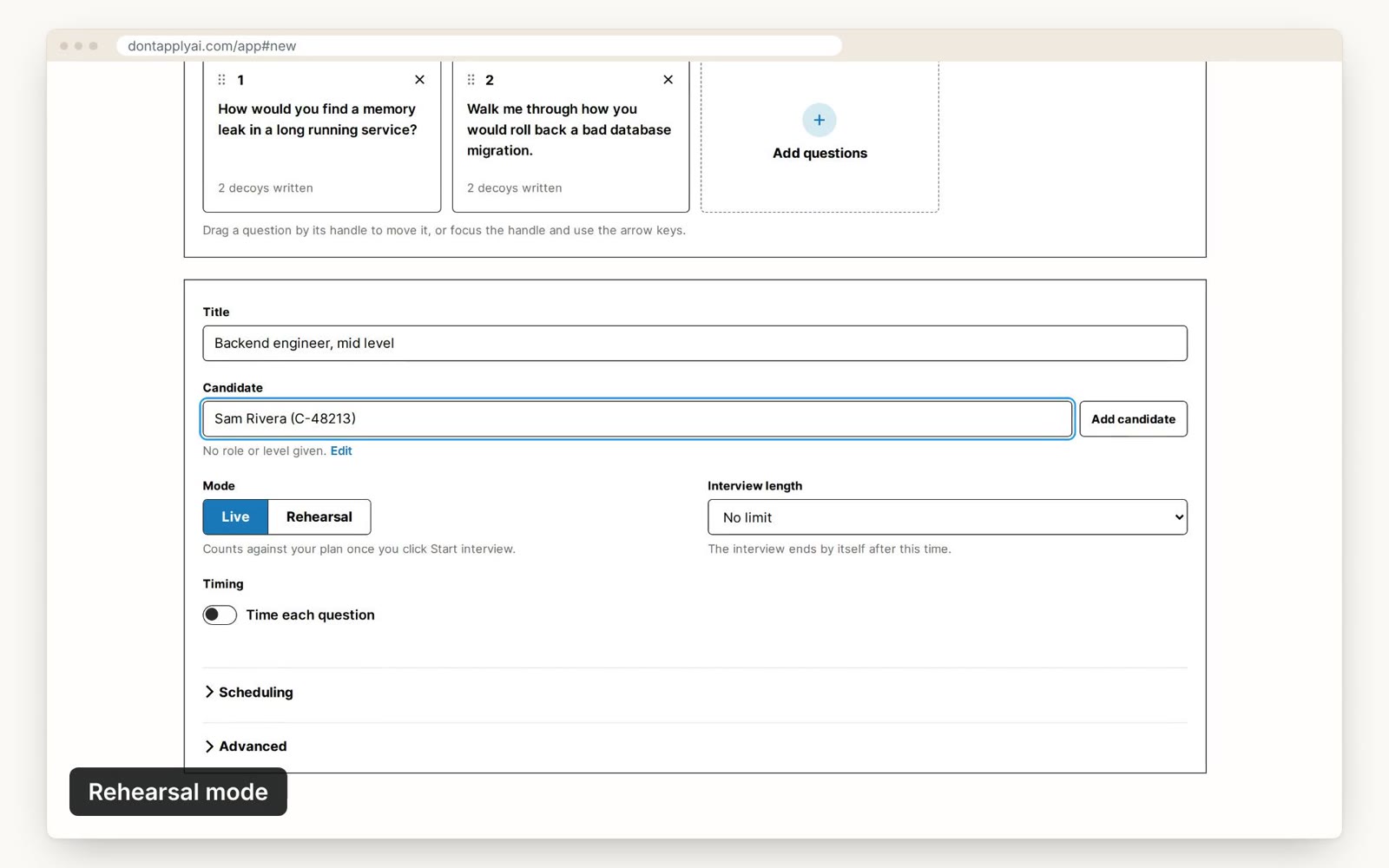
To set one up, choose Rehearsal under Mode when you create the interview. Rehearsals are free, so practice as often as you like.
Running an interview
You run each interview from its control window, a page your candidate never sees. Watch the video guide and follow each step.
Keyboard shortcuts
While the control window is in front, you can use these keys:
| Key | What it does |
|---|---|
| Space or → | Show the next slide |
| ← | Go back to the previous slide |
| D | Mark that the candidate answered a decoy |
| P | Mark a long pause |
| O | Mark an answer that didn't fit the question |
| F | Flag the question |
| H | Report that the design is hard to read |
Transcript
0:00 Before your first real interview, we recommend a practice run. When you create the interview, choose Rehearsal under Mode. A rehearsal works like a live interview, but it never counts against your plan, and it ends after 15 minutes. Your candidate's screen shows a test question in place of every question, with Rehearsal written across it. Your control window, the page you run the interview from, still shows your own questions.
0:28 While the control window is in front, you can use these keys. Press Space or the right arrow to show the next question, and the left arrow to go back. Press D when your candidate answers a decoy, one of the other questions on their screen. Press P for a long pause, O for an answer that didn't fit, and F to flag the question. Press a key again to take its mark off. If they can't read the slide, press H to tell us. While you're typing in a notes box, the keys type letters instead.
Still need help?
If you can't find the answer you're looking for, send us a message and we'll get back to you, usually within one working day.