The candidate's page
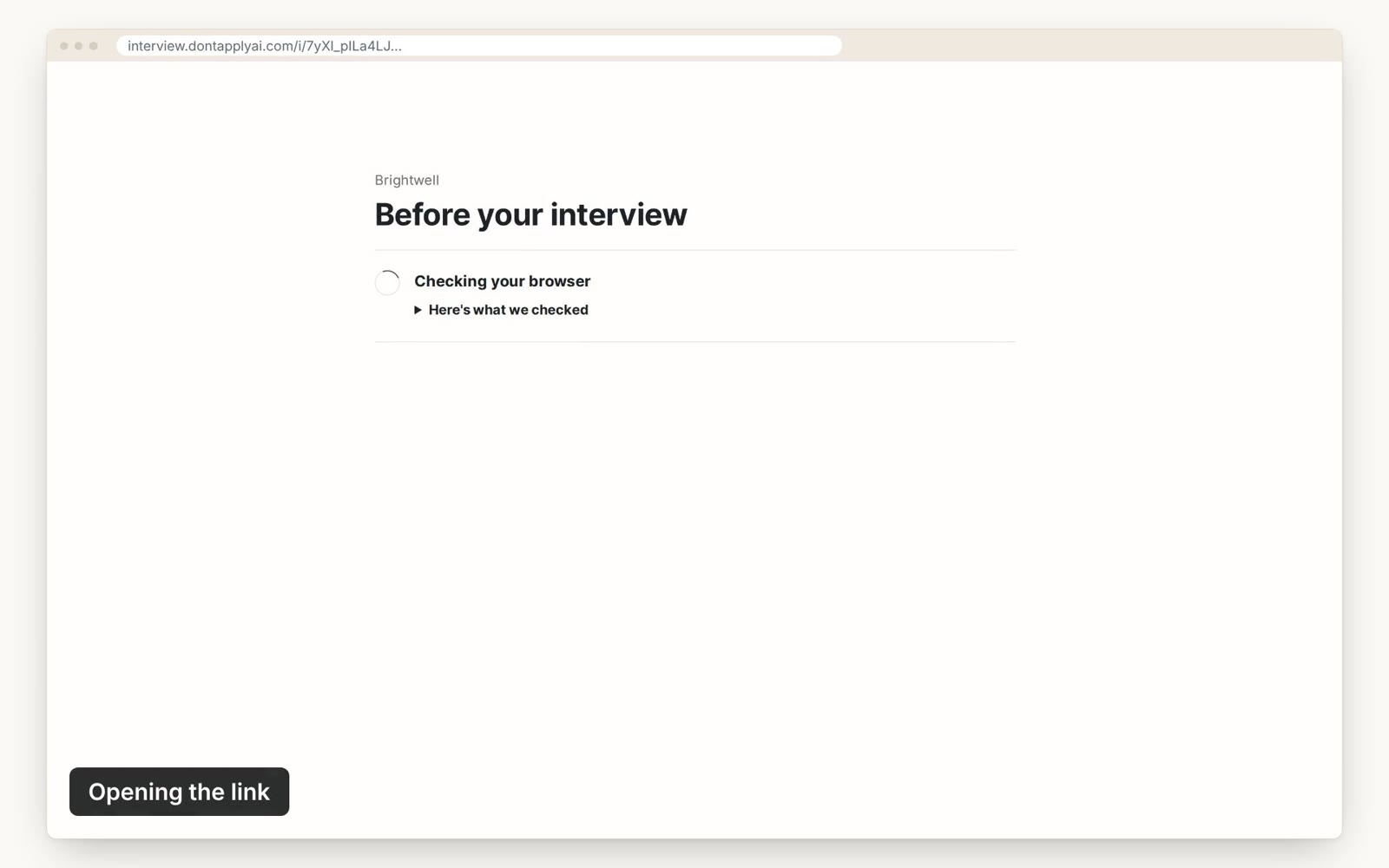
When your candidate opens your link, the page takes them through these steps.
In this video guide
What your candidate sees
- Step 1
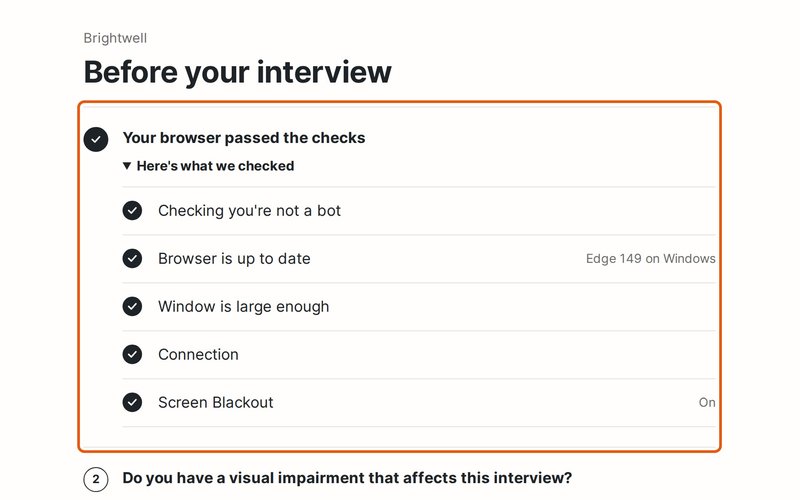
The page shows who the interview is with, and runs a few quick checks under We need to check a few things: their browser, window size, connection and Screen Blackout, one row each.
- Step 2
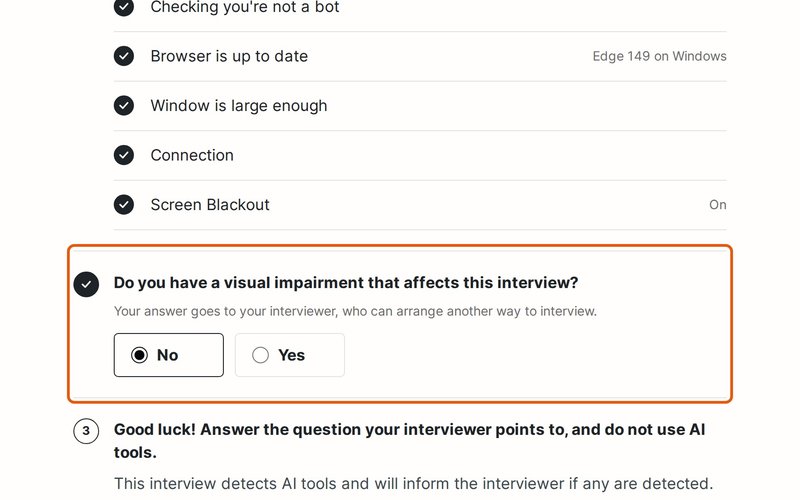
Depending on your Advanced settings, the same list asks them to share their location and answer a question about visual impairments, and they confirm their email with a code. Their location is asked for only when they click Allow, and they can refuse it and go on.
- Step 3
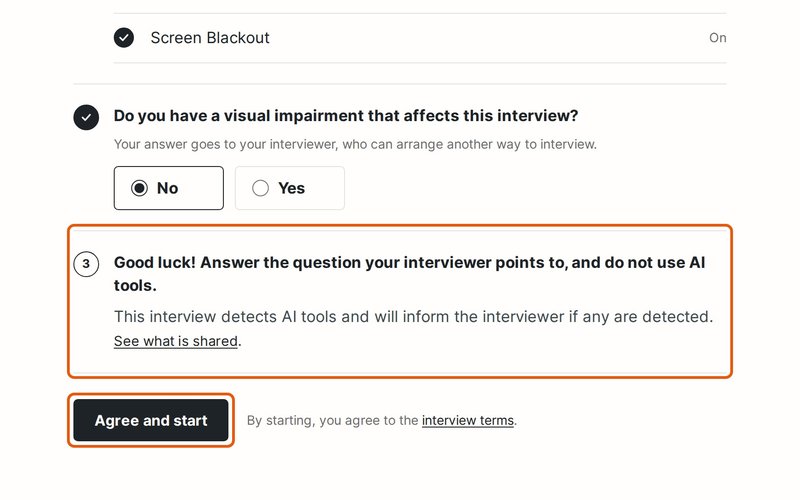
Once those are done, the page asks them not to use AI tools, and See what is shared lists what you see. They click Agree and start. Under Advanced you can have them tick each point instead.
- Step 4
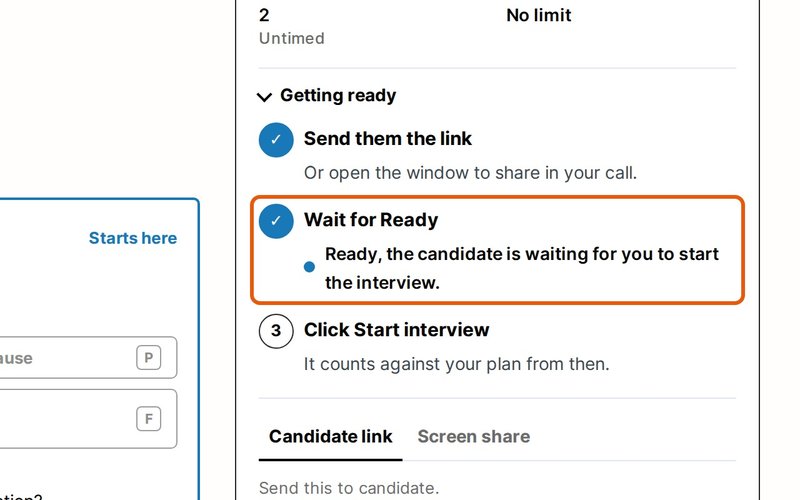
The page waits for you. Getting ready in your control window shows they're ready, and tells you if they have a visual impairment. The Candidate card shows their browser, and Signals shows their location, rounded to about 1 km, or that they refused it.
- Step 5
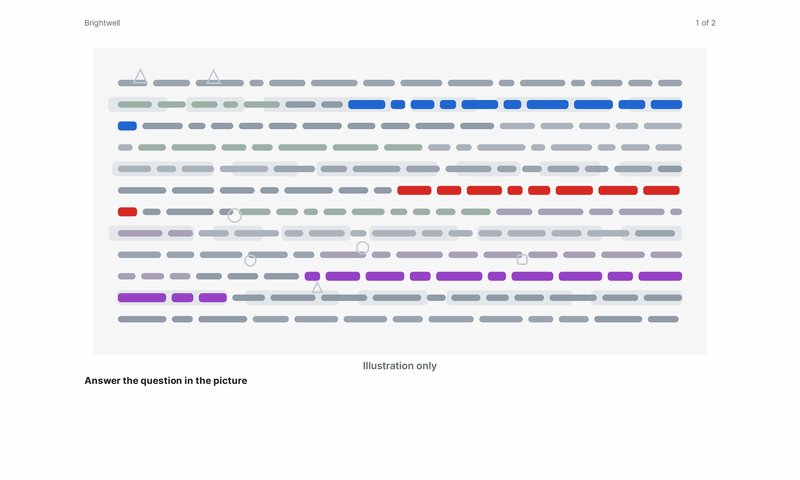
When you start, the first question appears among decoys in other colors. They answer the one in the color you name.
The page also looks for browser extensions on our list of AI assistants. If it finds one, your control window names it. Only Chrome, Edge and other Chromium browsers can be checked this way.
By default, the link opens only in Edge on Windows, Safari on a Mac and Chrome on Android. In any other browser, the page asks the candidate to switch. To allow any browser, open Advanced and choose Any browser. Screen Blackout then does not protect the questions.
To make sure only your candidate opens the questions, open Advanced and turn on Confirm the candidate's email with a code. To send the code to an address you choose, enter it under Candidate's email in Scheduling. If you leave it empty, the link keeps the first address entered. To start over, click Reset next to the link.
The page uses their camera and microphone only on an interview with a video call, and it doesn't record video or audio.
Transcript
0:00 Your candidate opens your link, and the page starts a few quick checks.
0:05 First, a few quick checks of their browser, window and connection. They may also answer a question about visual impairments and confirm their email.
0:15 Next comes a short list of things to know. They agree, and they're ready.
0:20 The page waits until you start. It never uses their camera or microphone, and doesn't record video or audio.
Still need help?
If you can't find the answer you're looking for, send us a message and we'll get back to you, usually within one working day.