Creating an interview
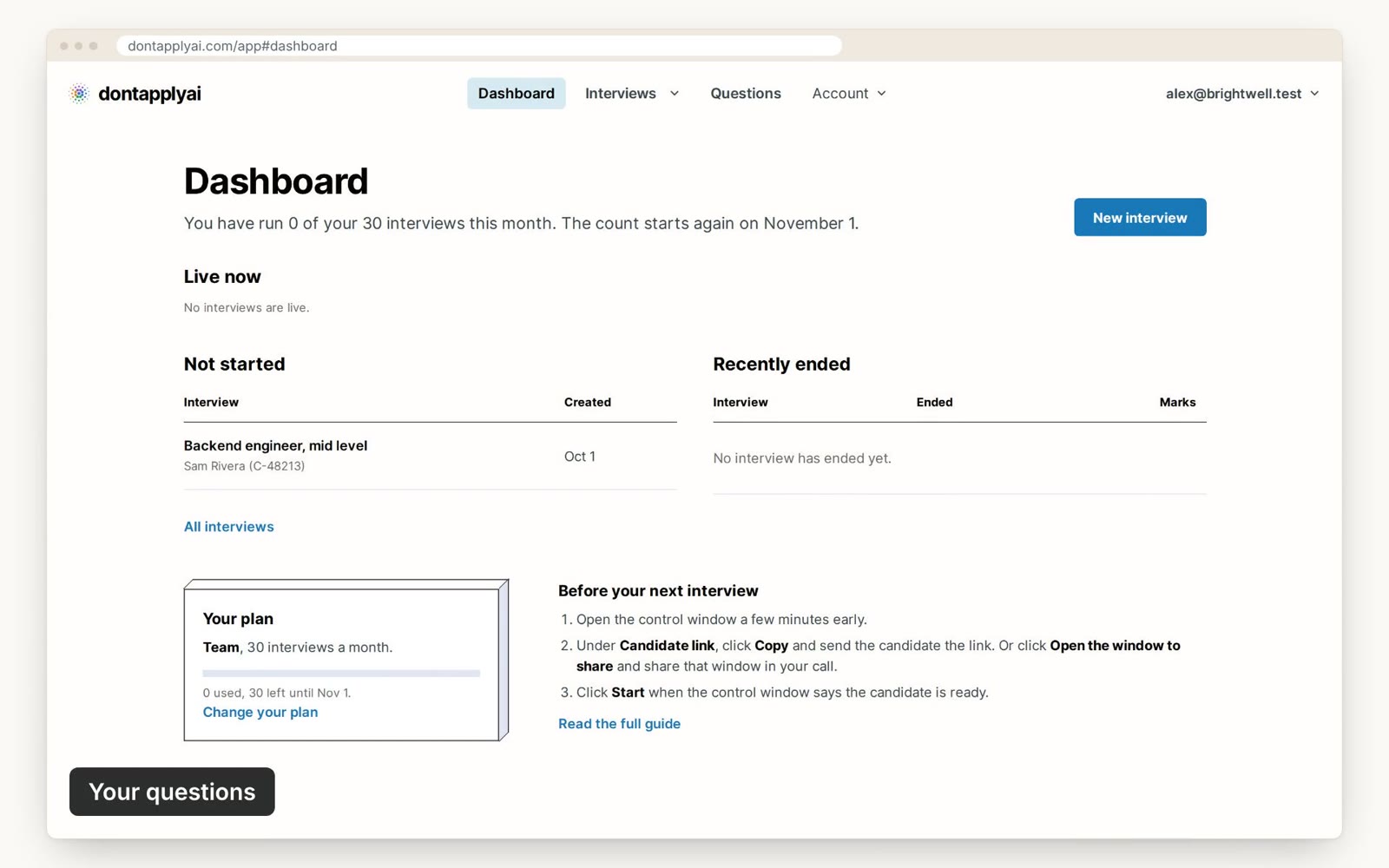
Setting up an interview takes a couple of minutes. Watch the video guide, or follow the steps below.
In this video guide
Step by step
To create an interview:
- Step 1
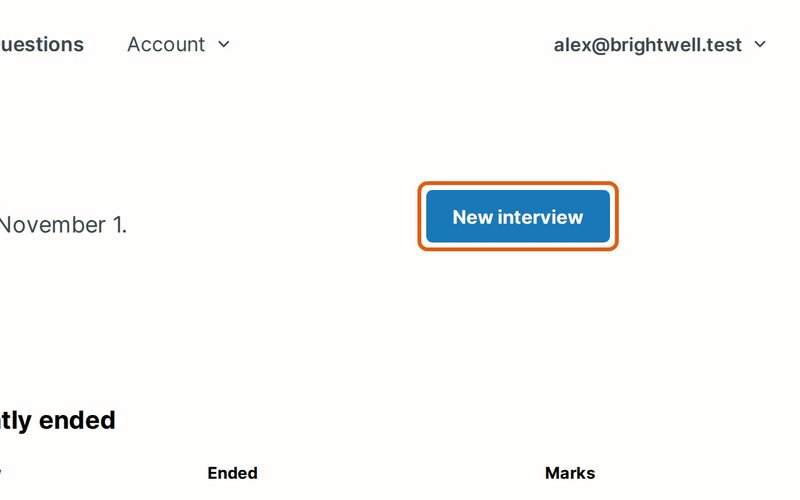
Click New interview.
- Step 2
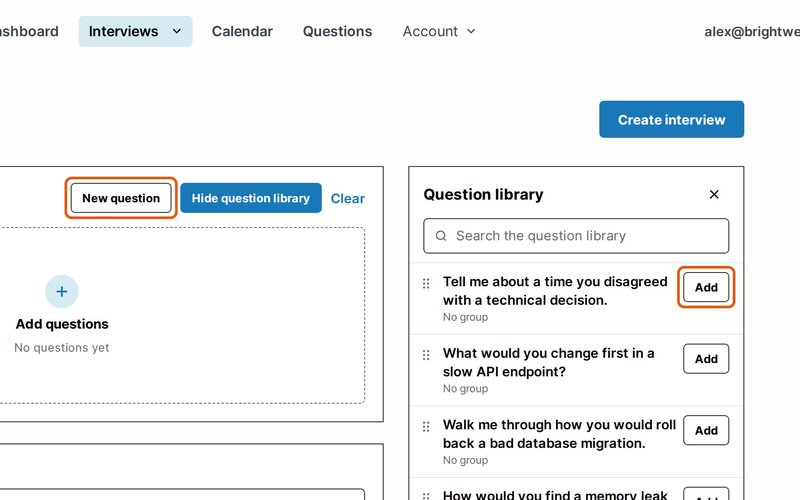
Click Add next to each question you'd like in the Question library. If it's closed, click Show question library first. To write a question just for this interview, click New question.
- Step 3
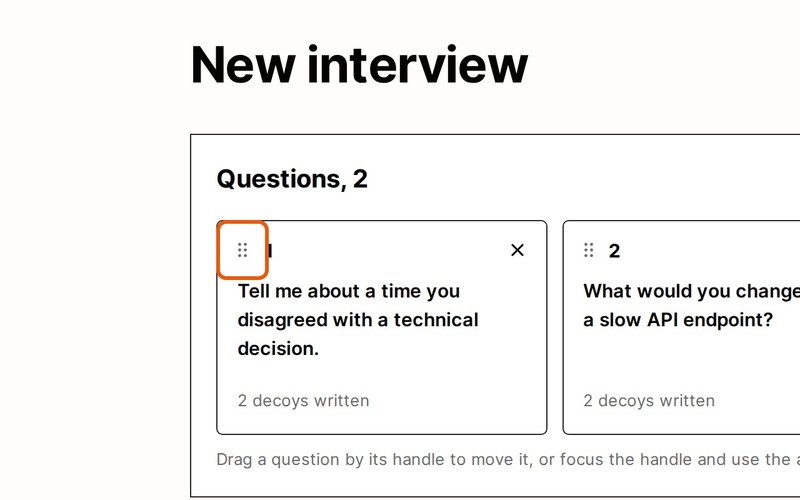
Drag a question by its dotted handle to change the order.
- Step 4
Enter a Title your team will recognize.
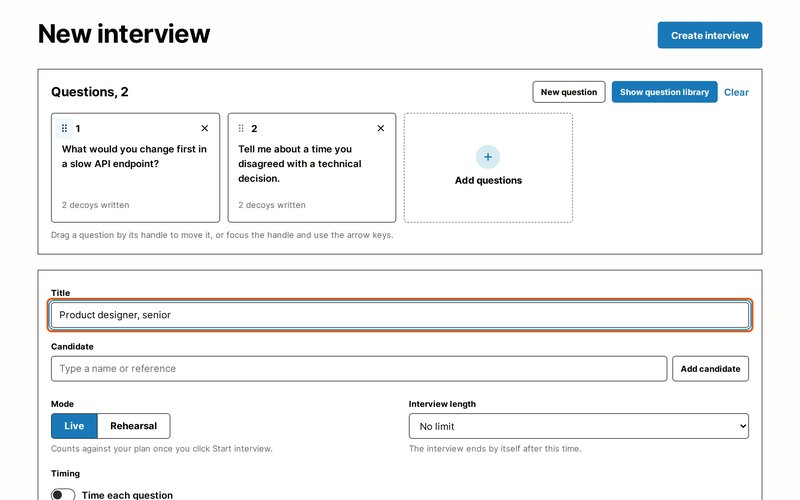
- Step 5
Type a name or reference under Candidate, and choose them from the list. To add someone new, click Add candidate. Only your team sees their name.
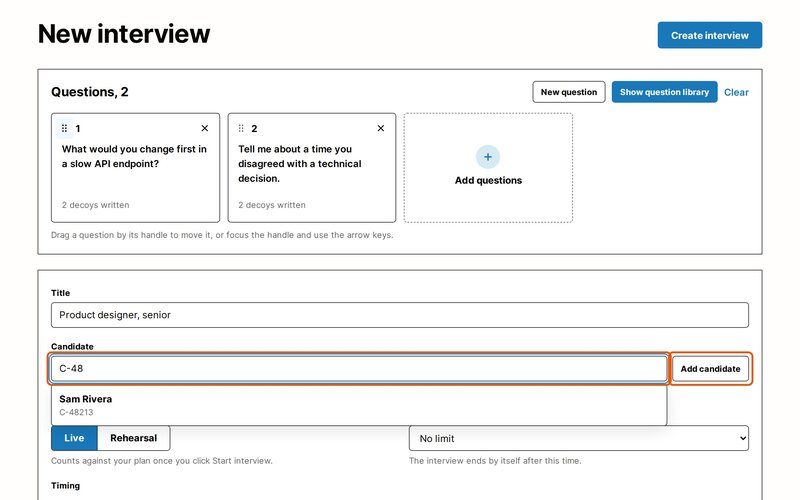
- Step 6
Keep Live under Mode, or choose Rehearsal for a free practice run, for example with a colleague. A live interview counts against your plan once you start it. Under Interview length, choose how long it may run. It ends by itself after that time, and your plan sets the longest you can choose.
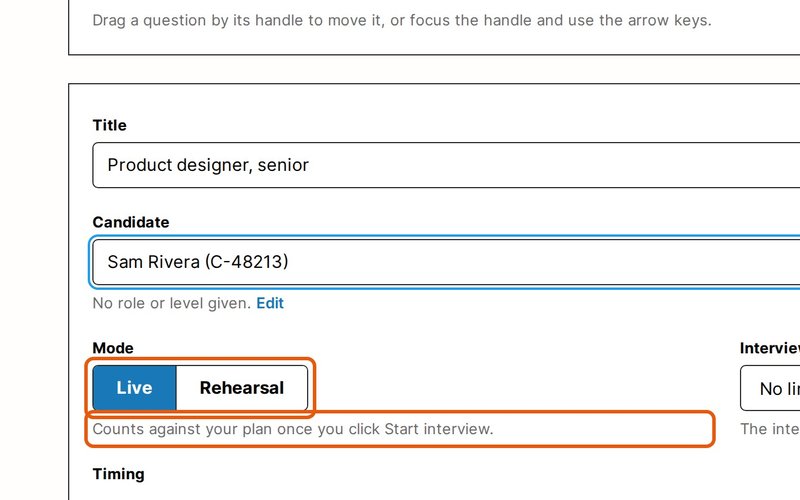
- Step 7
Turn on Time each question if you'd like the candidate to see a countdown.
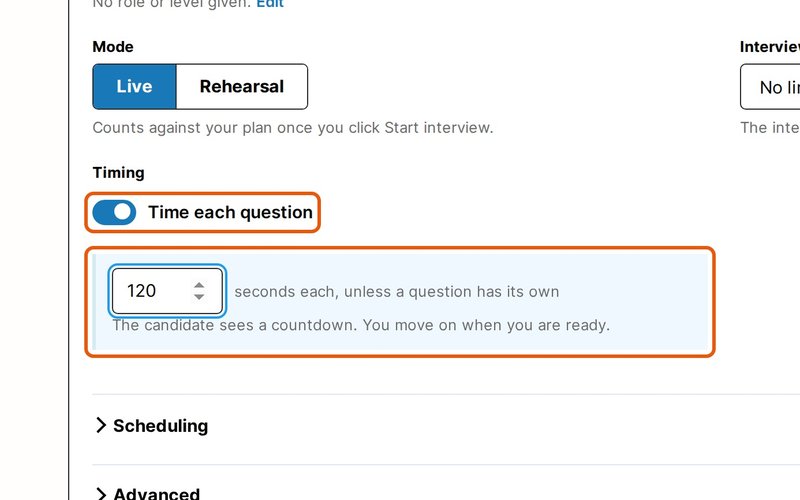
- Step 8
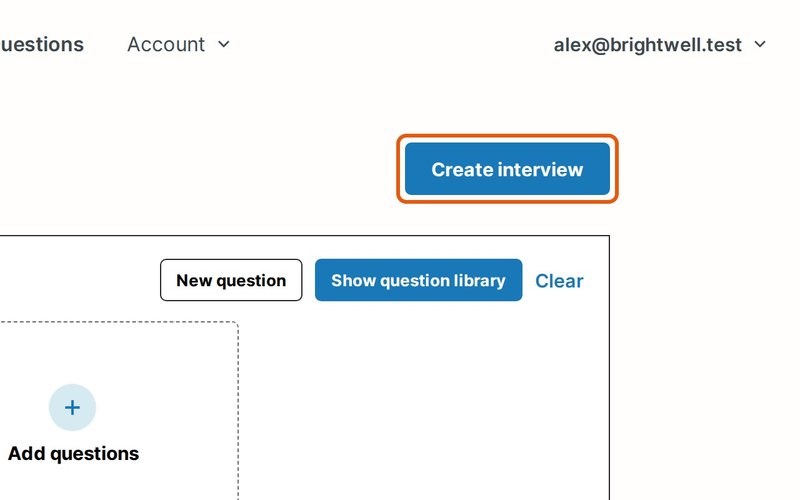
Click Create interview at the top of the page, and you're ready to go.
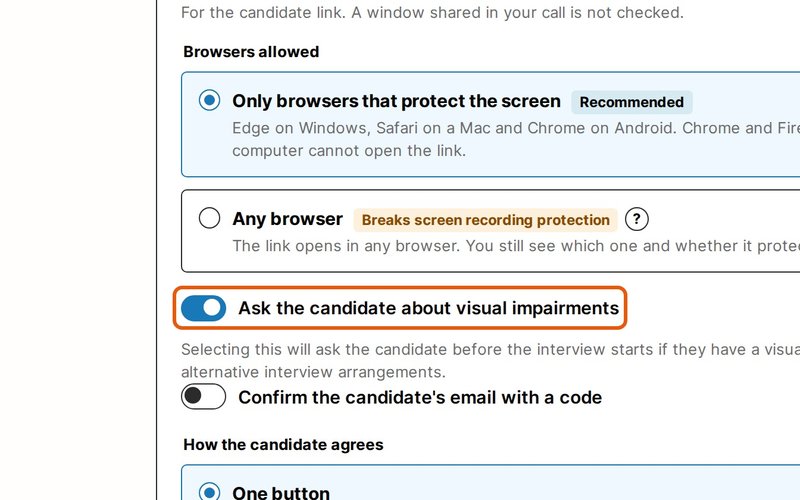
Advanced holds the settings for the candidate link: which browsers can open it, whether to ask about visual impairments and for their location, and whether to confirm their email with a code. The defaults suit most interviews.
To give the interview a time and send your candidate a calendar invitation, open Scheduling and fill it in. See Scheduling an interview.
Transcript
0:00 Let's create an interview. Click New interview, then click Add next to the questions you'd like. Drag them into any order.
0:11 Give it a title, and choose your candidate. Only your team ever sees their name.
0:16 Keep Live for the real thing, or choose Rehearsal for a free practice run.
0:21 For a countdown on each question, turn on Time each question.
0:27 Click Create interview, and you're all set.
Still need help?
If you can't find the answer you're looking for, send us a message and we'll get back to you, usually within one working day.